
Adding recipes
Paste it, photograph it, forward it, share it from your phone or import a whole cookbook — every way a recipe gets into your vault.
However a recipe arrives, the AI turns it into a clean recipe card — title, ingredients with amounts, steps, times, servings, nutrition and allergens — in the language it was written in. The original text and photos are kept with it, so nothing is ever lost to interpretation.
Paste text or a link
Press Add recipe and paste whatever you have into the box, then press Save recipe:
- A link to a recipe page — we fetch the page and pick the recipe out of it.
- The recipe itself — text copied from a website, a message, a PDF or your notes, in any language.
- Text with pictures copied from Word, Notion, Evernote or an email — the pictures come along and are saved with the recipe.
On a computer you can also drag pictures straight onto the box.
Already have it? If what you paste matches a recipe in your vault, we say so instead of saving a second copy.
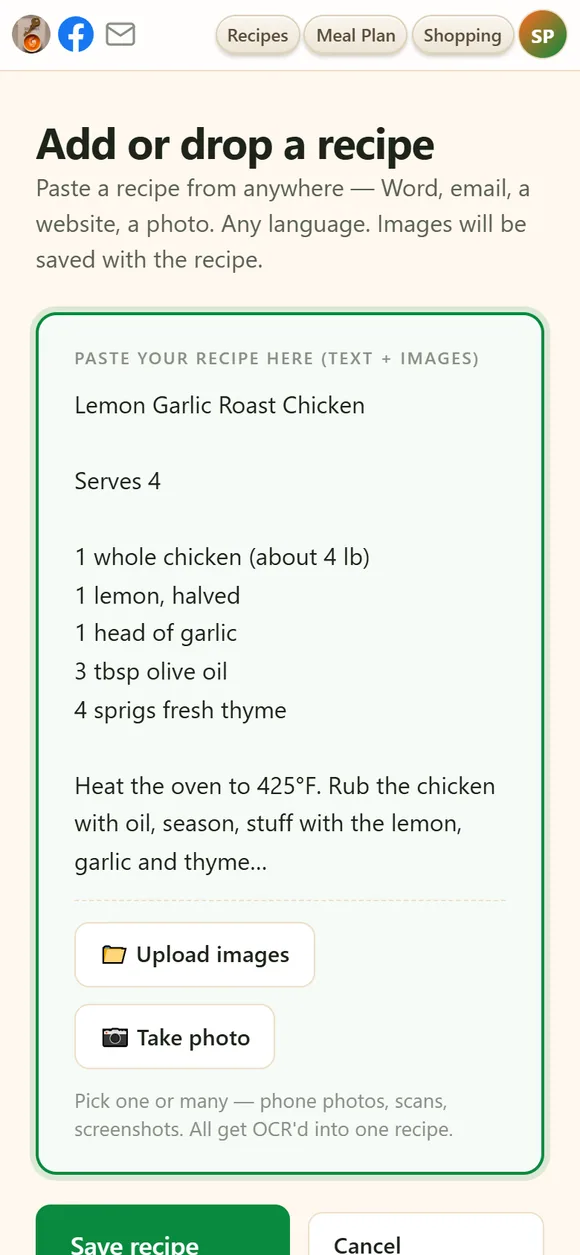
Photos, screenshots and handwriting
Use 📁 Upload images to pick one or several pictures, or 📷 Take photo on a phone. A cookbook page, a recipe card, a screenshot of a post — even a handwritten family recipe — all work. The text is read off the image and turned into a structured recipe, and the original photo stays attached so you can always check it.
- Several photos, one recipe. Both sides of a card, or a recipe that runs over two pages — select them together and they become one recipe.
- Straight from My Recipes. On a phone, the camera button on the Add recipe bar opens the camera directly.
- Something misread? Open the recipe and press Re-OCR & reprocess at the bottom to read the photo again, or correct the text by hand — see Original text and reprocessing.
Cooking videos and reels
Paste — or email — a link to a YouTube video, a TikTok or a Facebook reel. We take the recipe from the video's description, or, when the recipe is only spoken, from the narration itself. The clip stays attached, so you can play it right on the recipe while you cook.
Instagram blocks every automated reader, so Instagram reels and posts can only be saved with the browser extension while you're signed in to Instagram.
Email it in
Send or forward any recipe to recipe@iwant2eat.com from your account's
email address. Plain text, newsletters, attached photos and bare links all work.
A reply tells you what was saved — or why it couldn't be.
Send from more than one address? Add the others under Account → Main → Email addresses. Each one needs a one-time confirmation, then recipes from any of them land in your vault.
From your phone's Share menu
With the iwant2eat app installed, tap Share in Safari, Chrome, YouTube, TikTok, Facebook or any app that shares links or text, and choose iwant2eat. The recipe is saved without leaving what you were doing. See the phone apps.
From your computer's browser
The iwant2eat browser extension saves the recipe page you're reading with one click. It's also the way to save Instagram posts and recipes behind a login. See Browser extension.
Import many recipes at once
Moving a whole collection? Open Import recipes (the Bulk recipe import link under the Add recipe box, or Account → Data → Import recipes):
- Paste many recipes — a long document, a cookbook chapter. It's split into separate recipes and each one is processed on its own.
- Word or text files (
.docx,.doc,.txt) with one recipe or a hundred. - Paprika — export from Paprika 3 (File → Export → All
Recipes) and upload the
.paprikarecipesfile. - An iwant2eat backup (
.i2e) — restored exactly as it was, photos and tags included. Imports only ever add; nothing you already have is touched.
Big imports are processed in batches; the recipes keep appearing on My Recipes over the next few minutes.
What happens after you save
- A few seconds of processing. The card shows ⏳ Processing…, then fills in.
- A photo, always. If the recipe came without a picture we add a matching stock photo, marked stock on the card. Add your own any time and it takes over.
- Your words win. Change the title or subtitle and your version is kept even if the recipe is processed again later.
- Missing amounts. When a source names an ingredient without saying how much, the amount stays blank — or, if you prefer, a typical amount is filled in and marked est. (turn that on under Account → Misc).
- A link we couldn't read. Sometimes a page can't be fetched. Then we may find the same dish elsewhere on the web — the recipe says so plainly and links to where it really came from. If nothing usable is found, the recipe tells you what went wrong instead of quietly staying empty.
Didn't find your answer? Write to us: support@iwant2eat.com