Reading & cooking
Servings and quantities, translation and units, step-by-step cooking mode, notes, photos and printing.
The recipe page
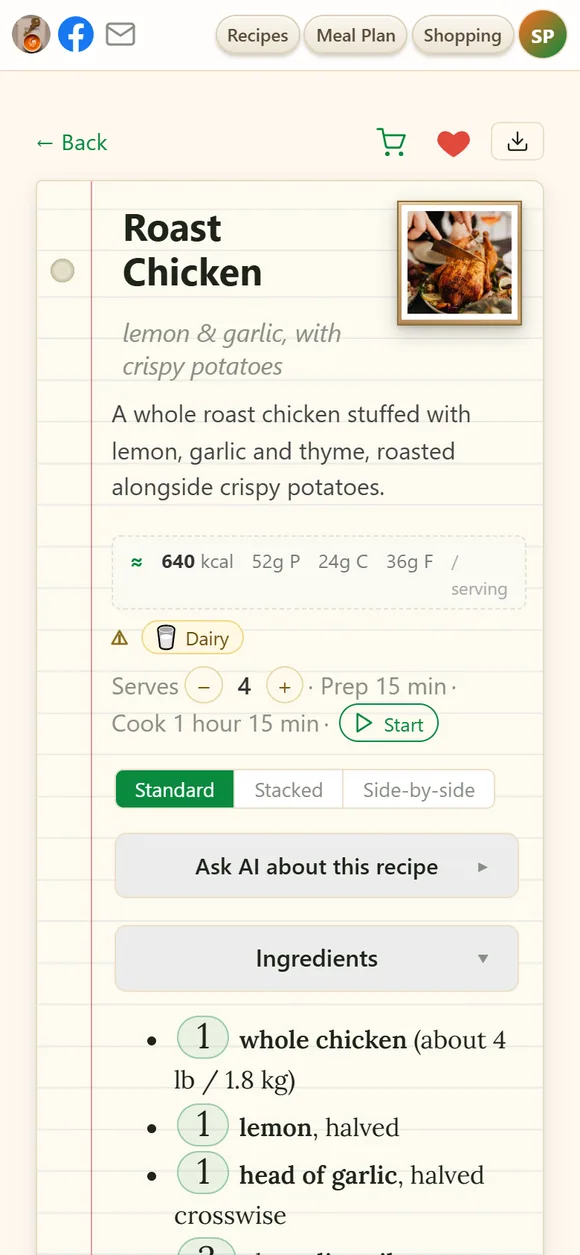
Open any recipe and everything you need to cook it is on one page:
- Title and subtitle — tap to edit. Your wording is kept even if the recipe is processed again.
- Nutrition per serving — ≈ kcal · P · C · F, estimated from the ingredients. A good ballpark, not a lab reading.
- Allergen chips — gluten, dairy, eggs, nuts and the rest, plus any of your own attention words found in the ingredients.
- Servings and times, and ▷ Start cooking.
- Sections you can fold away — Ingredients, Steps, Notes, Photos, Video and the Original recipe text.
The icons in the top corner:
- 🛒 puts the recipe's ingredients on the shopping list.
- ♥ makes it a favorite.
- 🌐 translates it — see below.
- ⤓ prints, exports, emails or shares it.
Servings and quantities
- Change the servings with − and +: every quantity is recalculated, and so are the times that depend on the batch size. A time marked * may run longer or shorter at the new size — use it as a guide.
- Change any amount. Only have 300 g of cheese when the recipe wants 500 g? Tap the amount and type 300 — the whole recipe scales to match. ↺ reset quantities puts the original numbers back.
- It follows you. The scaling you set on your computer is waiting on your phone.
- est. next to an amount means the source didn't give one and a typical amount was filled in.
Three ways to lay out a recipe
- Standard — all the ingredients, then all the steps.
- Stacked — each step with the ingredients it uses right above it, so you measure as you go.
- Side-by-side — the same, with the ingredients beside each step; best on a big screen.
Each device remembers its own choice.
Translate any recipe
When a recipe is in a language other than yours, the 🌐 EN pill (with your language's code) appears at the top. Tap it and the title, ingredients, steps and notes are translated; tap again to see the original. Nothing is overwritten — the original is always one tap away.
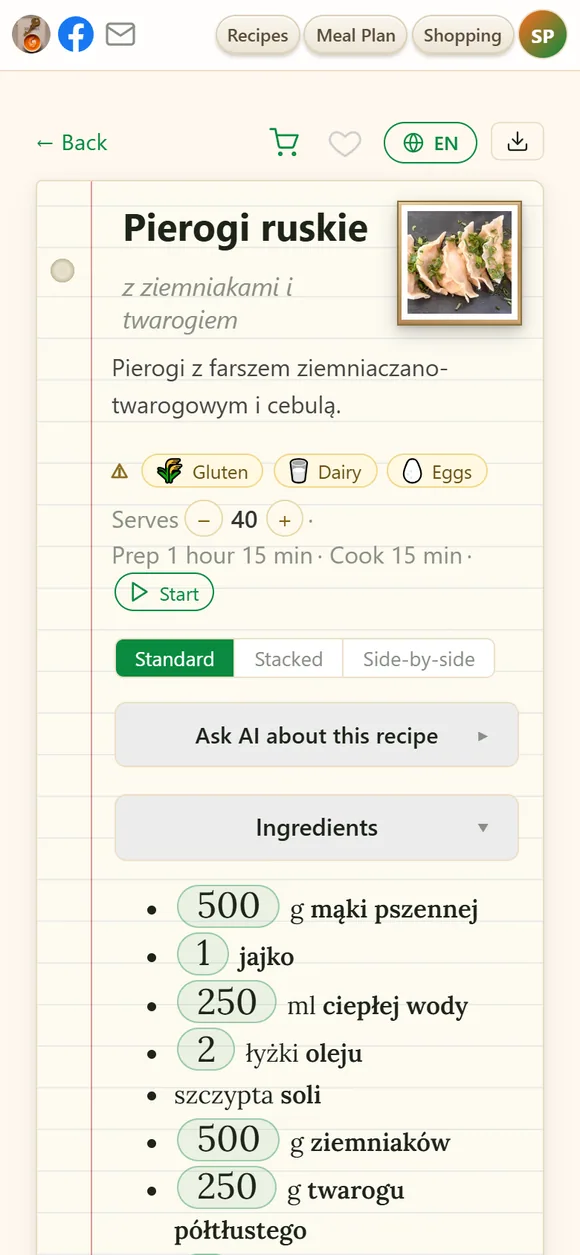
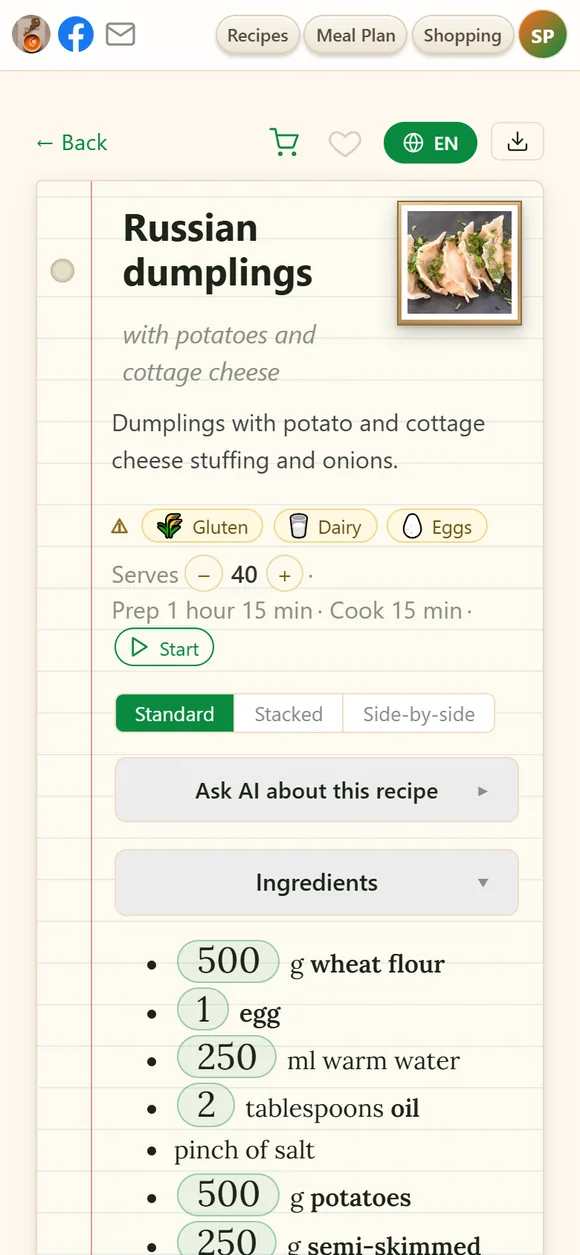
The language you translate into is your app language: change it in the menu under your picture → Language. To see the titles of all your recipes in your language, use the 🌐 button on My Recipes.
Units and kitchen conversions
Set your preferences once under Account → Cooking preferences and every recipe follows them:
- Units — metric (g, ml, °C), imperial (oz, cups, °F), or exactly as written.
- Oven temperatures in °C or °F, whichever you think in.
- Yeast, garlic, vinegar and curing salt converted to the kind you actually have — fresh or dry yeast, cloves or powder, 9% or 70% vinegar. A converted line is marked ⇄.
- Vague measures made concrete — a pinch of salt, a packet of yeast or a clove of garlic gets its weight in grams right where you read it.
Cooking mode
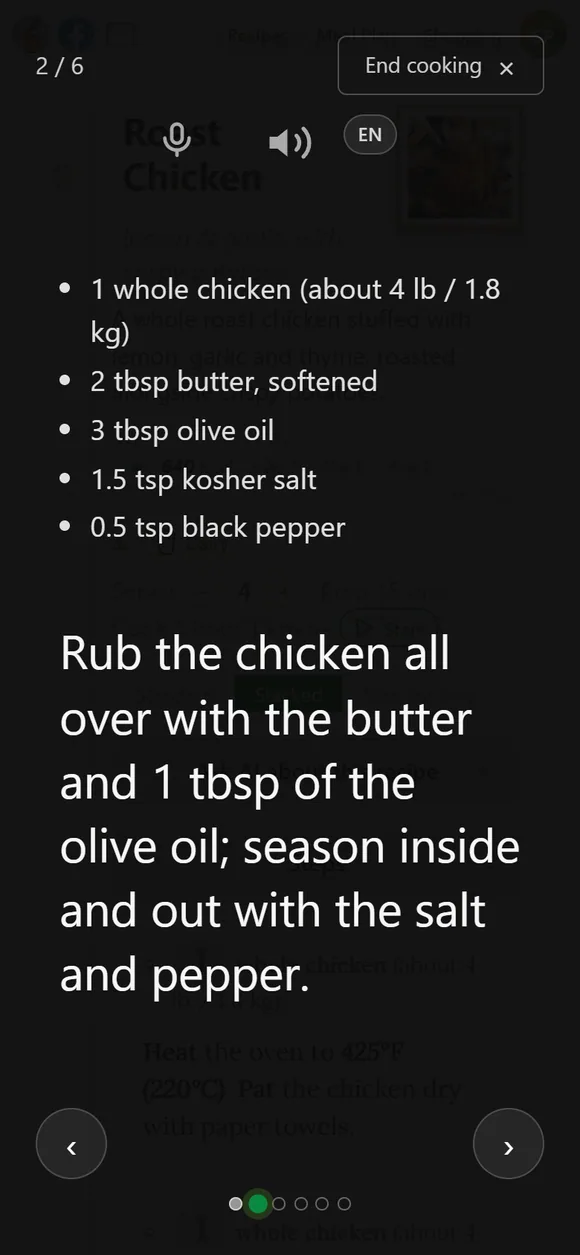
Press ▷ Start cooking for a full-screen, kitchen-friendly view: one step at a time in big type. Move with the arrows and see how far you are on the dots at the bottom — tap a dot to jump to that step.
- 🔊 Read aloud — the speaker reads the current step.
- 🎤 Hands-free — turn on voice control and say next, previous, repeat, stop or help. Flour-covered fingers never touch the screen.
- The language chip next to the microphone shows which language your voice is listened for.
- The screen stays on while a recipe is open, so it's ready when you glance over (turn this off under Account → UI preferences).
Choose the Stacked or Side-by-side layout before you start, and each step shows the ingredients it needs.
Ask AI about this recipe
Open Ask AI about this recipe and ask anything about the dish in front of you: What can I use instead of buttermilk? How do I halve it? Is this gluten-free? Can I make it the day before? Answers are added to the recipe's Notes, so they're still there next time you cook it.
Notes
The Notes section holds tips that came with the recipe — and your own. Tap it to write what you changed, what the family thought, which pan works best. Your notes stay put when the recipe is processed again.
Photos and video
- Add photos with the + Add photo tile — or paste a picture, or drag it anywhere onto the recipe.
- The first photo is the cover — the one on the card. Use Make thumbnail to promote another, drag photos (or use the arrows) to reorder them, and the bin to delete one. Tap the picture in the corner of the page to see photos full-size.
- Video — a recipe saved from YouTube, TikTok or a Facebook reel keeps its clip in the Video section: play it right there while you cook, or remove it if you don't want it.
Original text and reprocessing
At the bottom of every recipe is Original recipe text — exactly what was saved, word for word. It's your safety net:
- Fix a mistake at the source. If an amount or a step came out wrong, click the original text, correct it and choose Save and reprocess — the recipe is rebuilt from your corrected text. Just save keeps your edit without rebuilding.
- Read a photo again. For a recipe made from photos, Re-OCR & reprocess reads the pictures afresh and rebuilds the recipe.
Both use a little of your AI budget.
Recipes with several versions
When one source holds several variations — pierogi with three fillings, a cake with two frostings — they're kept together as one recipe with a section for each. Split into N recipes at the top turns every section into a recipe of its own; afterwards you can keep the combined original or move it to the Trash.
Print, PDF, Word and email
The ⤓ button at the top of a recipe opens:
- 🖨 Print — a clean, ink-friendly copy.
- 📄 PDF and 📝 Word — files to keep or send (on a computer).
- ✉️ Email — a short email from your name with the recipe's link; see Email a recipe.
- Share — a link anyone can open; see Sharing a recipe.
Didn't find your answer? Write to us: support@iwant2eat.com