
Finding & organizing
Search, tags, favorites, collections and smart sorting — plus Ask AI, which answers from your own recipes.
My Recipes is your home page in iwant2eat: every recipe you've saved, as a grid of cards with photos, tags and collections. Everything here is about getting to the right recipe fast.
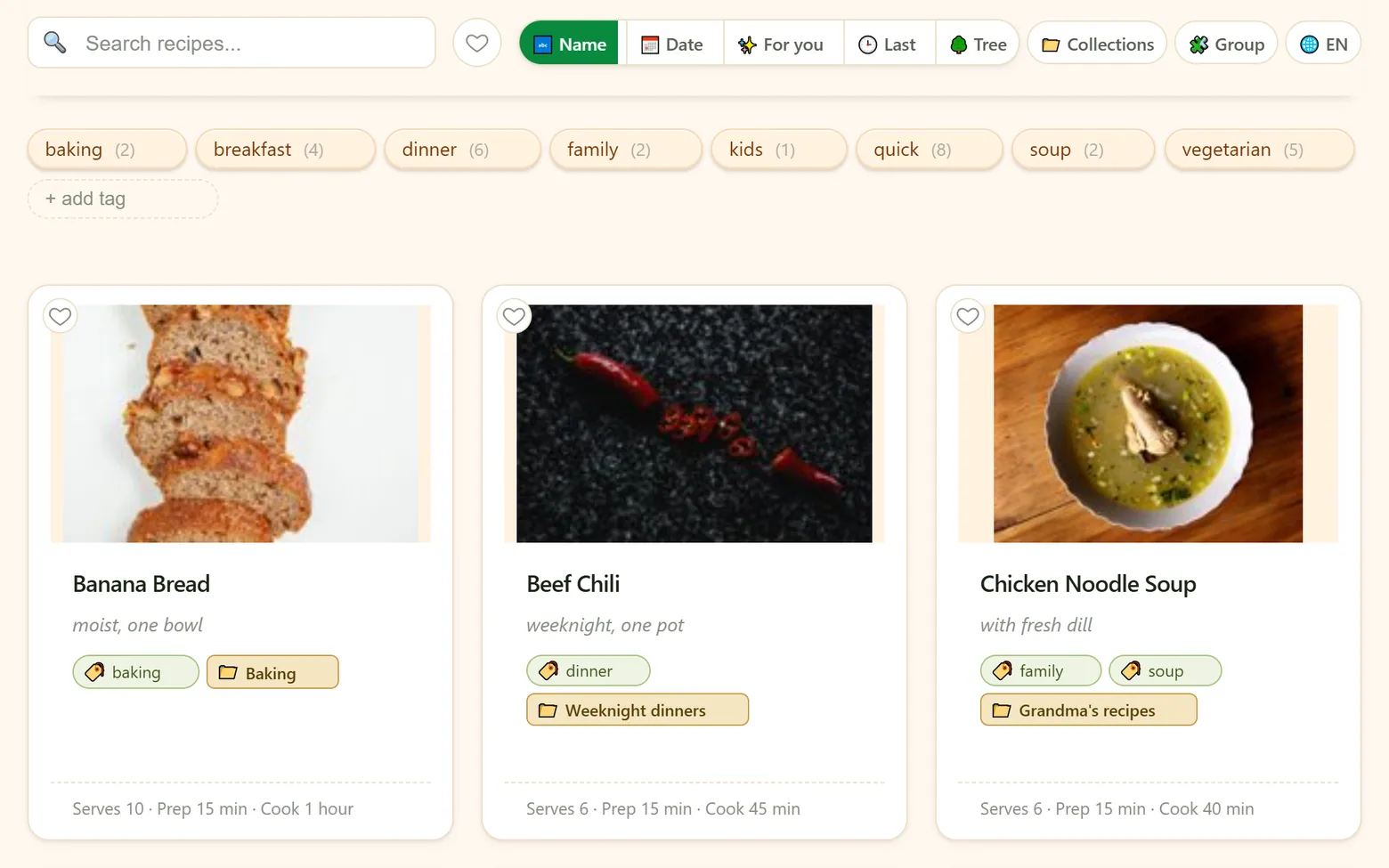
Search
Start typing in Search recipes… and the grid narrows as you type. Titles, ingredients and the rest of the recipe are all searched.
- Several words narrow it down. pickled onion finds recipes with both words, not everything with an onion in it.
- Typos are forgiven. If nothing matches exactly, word endings are relaxed so a slip or a different form of the word still finds the recipe.
- Search combines with everything else — tags, favorites, collections. Clear filters resets them all at once.
Favorites
Tap the heart on a card (or on the recipe page) to make a recipe a favorite. The heart next to the search box shows favorites only — tap it again to see everything.
Tags
Tags are the chips above your recipes (on a phone, below them), each with the number of recipes that carry it.
- Filter — tap a tag; tap more to combine them. untagged shows recipes without any tag.
- Create — type a name into + add tag.
- Tag a recipe — drag the tag onto a recipe card (on a phone, long-press the tag, then drag), or use Assign tag in the card menu.
- Rename or delete — double-click a tag to rename it; the × on a tag deletes it and removes it from every recipe.
Collections
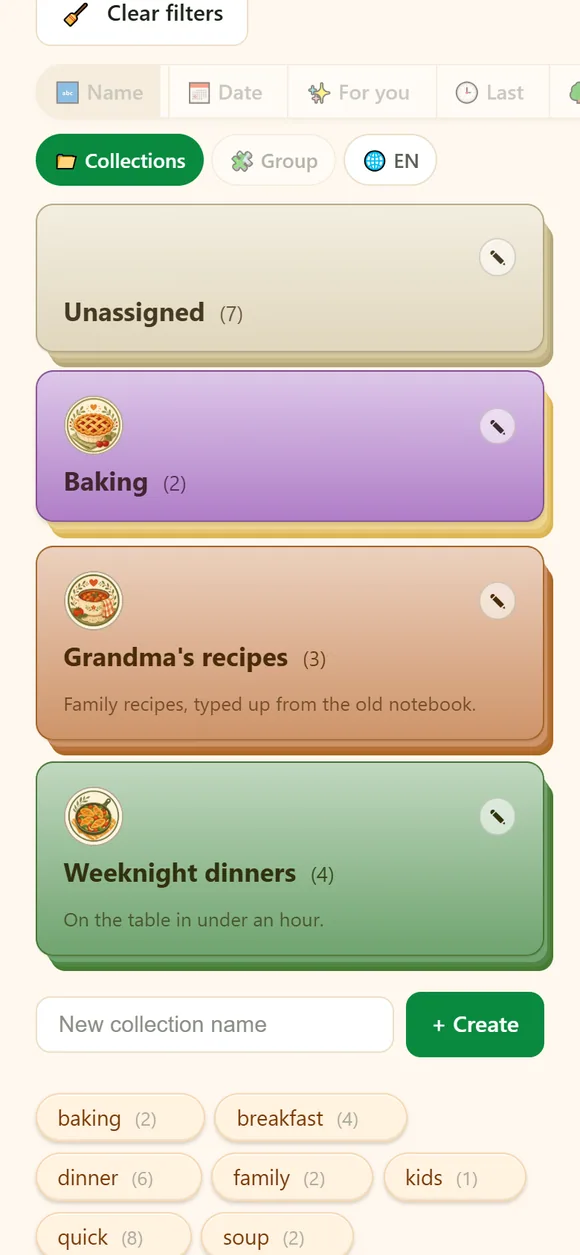
Collections are named groups — Grandma's recipes, Weeknight dinners, Christmas baking. A recipe can be in as many as you like.
- Create one — switch to the 📁 Collections view, type a name and press + Create.
- Fill it — open the card menu of any recipe and choose Add to collection.
- Open it — tap a collection to see just its recipes; searching and Ask AI then stay inside it.
- Make it yours — the pencil on a collection changes its name, colour, description and theme.
Right-click a collection (long-press on a phone) for more: Share by link, Stock photos where missing, Uncollect all and Delete collection. Deleting a collection also moves the recipes that were only in it to the Trash — restore them together if you change your mind.
Sorting and views
The buttons next to the search box decide how the grid is ordered and grouped. Your choice is remembered.
- Name · Date added · Last viewed — the plain orders.
- ✨ For you puts the recipes closest to your tastes first. It learns quietly from what you already do: recipes you put on the shopping list count most, then favorites and meal-planned dishes, then the ones you keep opening. No ratings to give.
- 🌳 Tree lists recipes by name, so all your Soups or Salads sit together with their variations underneath.
- 📁 Collections groups the grid by collection.
- 🧩 Group stacks similar recipes — the same dish in several versions — into one card with a chip for each version.
- 🌐 EN (your language's code) shows every title translated into your language.
The card menu
Right-click a recipe card — or long-press it on a phone — for quick actions without opening the recipe:
- Assign tag and Add to collection.
- New stock photo — swap a stock picture you don't like for a different one.
- Trim images — keep only the first picture when a page brought along more than you want.
- Delete recipe — moves it to the Trash.
Ask AI — answers from your own recipes
Below the grid there's a box where you can ask anything the way you'd ask a friend. The answer comes from your recipes, not from the internet: you get a short written answer and, underneath, the cards of the recipes it found.
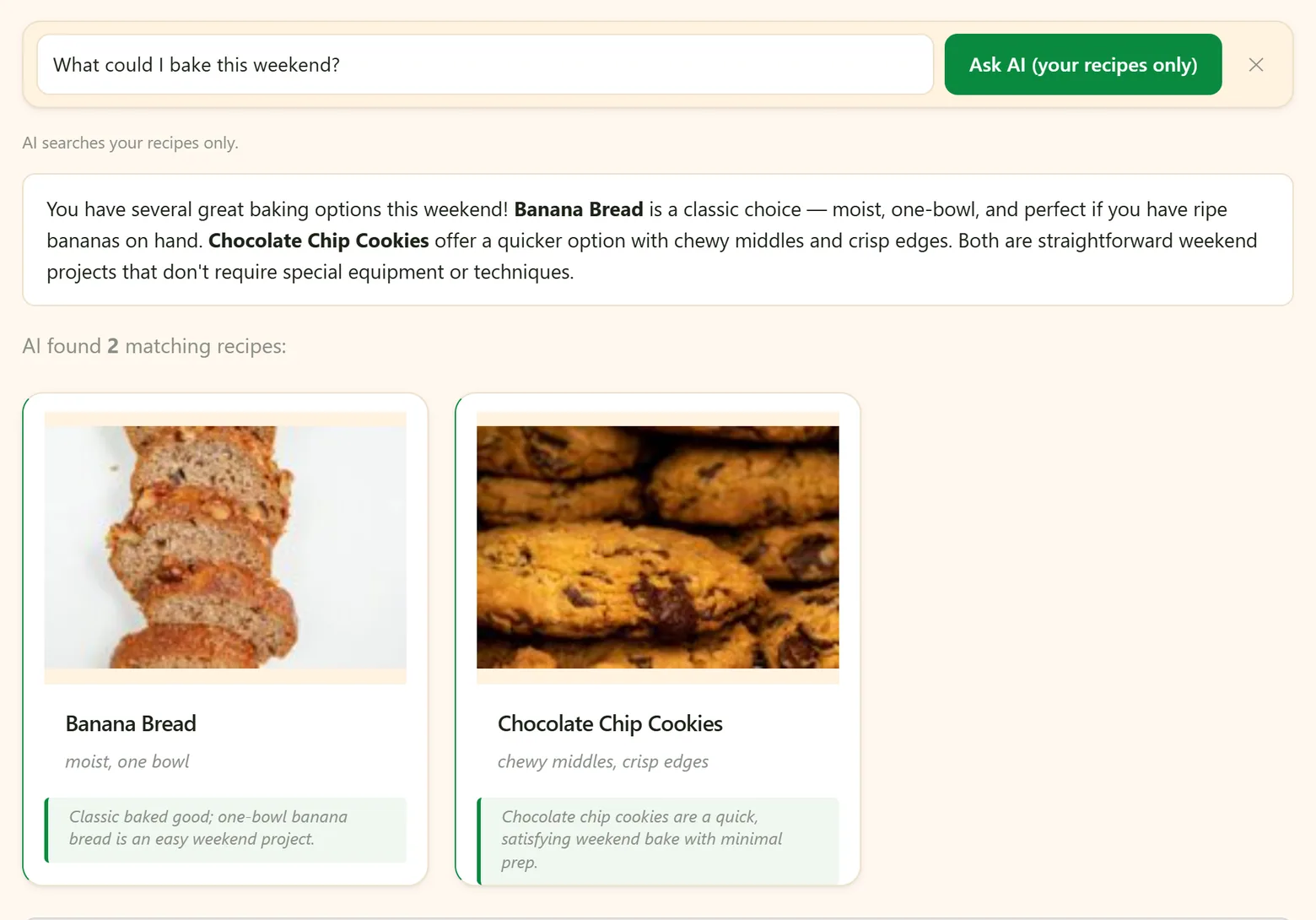
- "What recipes do I have with duck?" — by ingredient, diet or occasion.
- "What can I cook in 30 minutes?" — by time.
- "Which of my desserts are gluten-free?" — questions that need judgement, not just matching words.
- "How do I make borscht?" — your versions of a dish, compared.
A few things worth knowing:
- It looks where you're looking. Filter by a tag, search or open a collection first, and the question only considers those recipes — the button then says how many.
- It knows your tastes. Favorites, your most-used tags and your attention words are taken into account.
- It remembers your questions. Tap the box to pick one you asked before; the × next to a past question removes it.
- An answer can become a recipe. When the AI writes out a recipe — say, a combined version of two of yours — Save as recipe adds it to your vault.
- It needs something to work with — Ask AI unlocks once you have at least five recipes. Asking across more than a hundred recipes costs noticeably more AI budget, so you're asked to confirm first.
Trash
Deleted recipes go to the Trash, not away for good. Open it from Account → Data → Trash: Restore brings a recipe back with everything it had, Delete forever removes it permanently, and Empty trash clears the lot.
Friends' recipes
At the bottom of My Recipes, Friends' recipes opens what your friends have shared with you. How friends work is in Sharing & family.
Didn't find your answer? Write to us: support@iwant2eat.com